The Instance Overview page provides a detailed summary and management options for your virtual machine (VM) instance. It includes information about the instance status, location, operating system, performance, and quick actions for managing the instance.

- Console Access: Opens a console interface to interact with the VM directly.
- Refresh: Refreshes the instance status and page information.
- VM Volume Snapshots: List of your Snapshots or takes a snapshot of the current state of the VM for backup or future restoration.
- Power Off: Shuts down the virtual machine.
- Reboot: Restarts the instance.
- Reset/Re-Install: Re-Installs the operating system on the VM.
- Delete: Deletes the instance permanently.
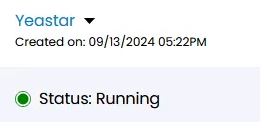
- Instance Name: Displays the name of the instance, in this case, Yeastar.
- Created on: Shows the creation date and time.
- Status: Indicates the current running status of the VM.

- Location: Indicates the data center location of the instance.
- Operating System: Displays the OS running on the VM.
- Cost: Shows the all-time consumption cost for the VM.
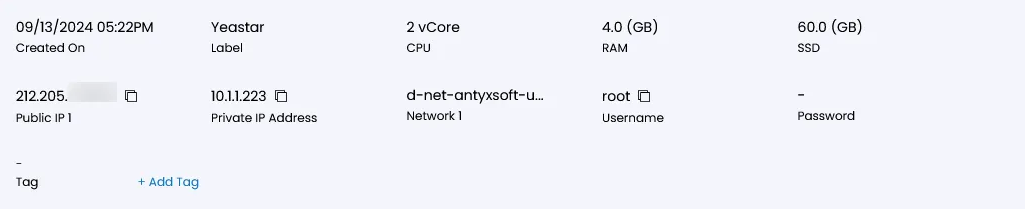
- Label: Custom label associated with the VM.
- CPU: Number of vCPUs allocated.
- RAM: Amount of memory available to the instance
- Disk Size: Size of the storage disk.
- Public IP Address: The public IP assigned to the instance.
- Private IP Address: The internal IP used in the network.
- Network: Displays the associated network.
- Username: Default login username for the instance.
- Password: Password (not displayed for security).
- Disk Size: Shows the disk usage capacity.
- Network Traffic: Provides metrics on network usage over a specified period (defaulted to the Last 24 Hours).
This overview page provides a comprehensive yet straightforward view of the VM instance’s configuration and management options. Each action button allows quick control over the VM's status, while resource specifications help monitor the VM's performance and behavior.
See more about Usage Graphics, VM Settings, Backups, Activity Logs
